
Digital cards
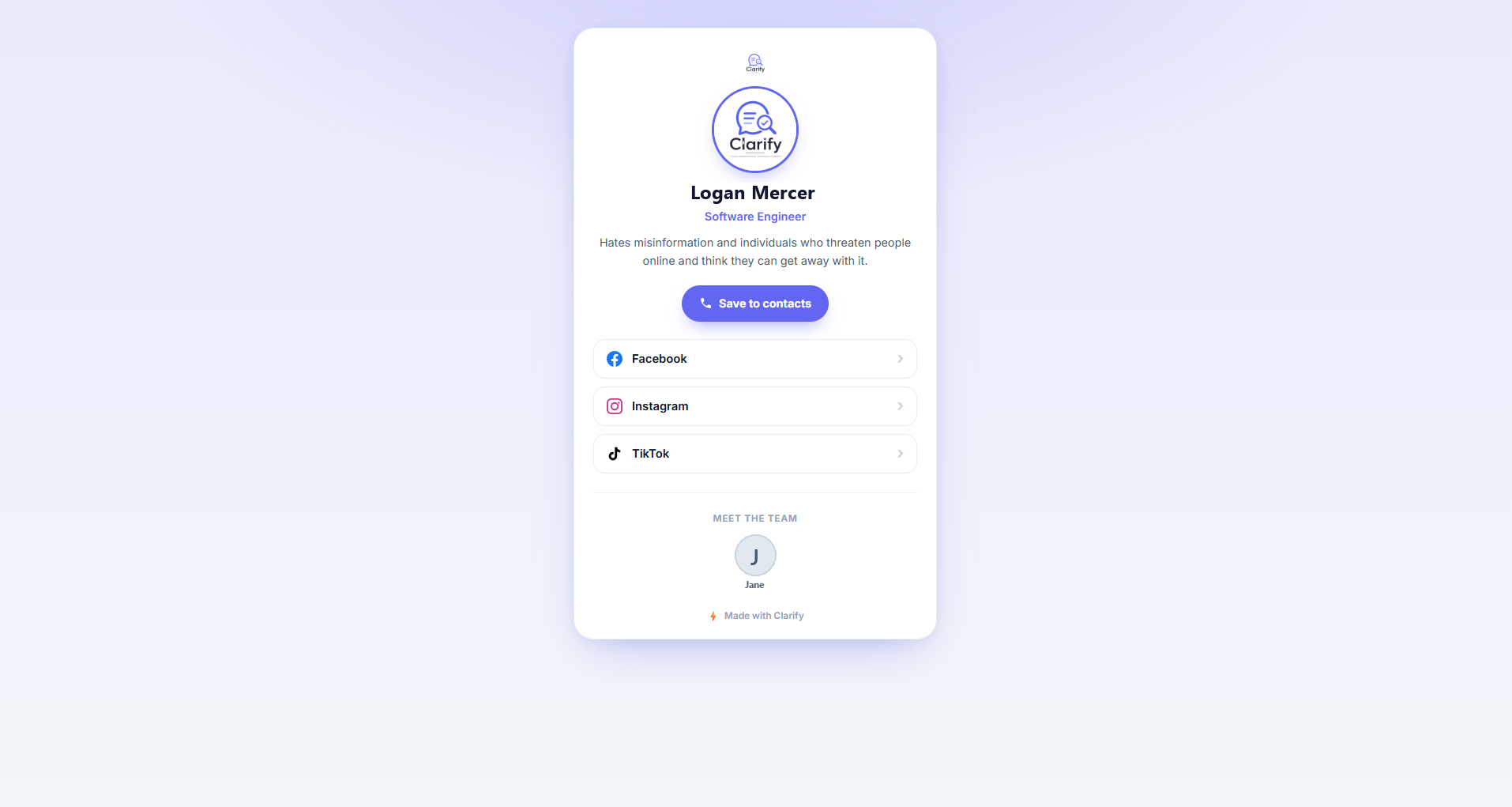
A digital card is a simple public web page that gathers your links and contact details in one place, the kind of thing you put behind a QR code or a link in bio. Manage them from the Cards page. Digital cards are available on the Pro and Agency plans, and you need the Manage cards permission. Editing them does not touch your Facebook Page.
Creating a card
Click New card and fill in the details:
- Display name, title, and bio. Who the card is for and a short description.
- Avatar and logo. Optional images for a personal and a brand look.
- Theme colour. Sets the accent colour of the page.
- Backdrop. What sits behind the card. Colour is a soft wash of your theme colour. Solid is a flat page in a second colour of your choosing, so a brand colour or plain black or white can sit behind the card while the theme colour keeps driving the buttons. Mesh and Aurora blend a few tones from it, and Aurora drifts slowly. Photo and Video put your own image or a short muted clip behind the card, with a colour wash slider so the card stays easy to read.
- Card style. White is the classic solid card. Glass is frosted, so the backdrop shows through. Dark is a dark translucent card with light text. Glass and Dark look best over a photo or video, and both have a card opacity slider. Slide it to 0 to drop the card body altogether, so only your photo, name and links sit on the backdrop.
- Contact details. Email, phone, website, and organisation. Visitors can save these straight to their contacts.
- Links. Add as many links as you like, each with a label and an icon, in any order.
If you have connected social accounts, Clarify can prefill your social links so you do not have to paste them in.
Photo and video backdrops
Every visitor downloads the backdrop when they scan, so keep it light. Photos are resized automatically. Videos must be MP4 and under 8 MB, and a loop of a few seconds looks best. Videos play muted and on repeat, and visitors who have asked their phone to reduce motion see a still frame instead. GIFs work too, but an MP4 of the same clip is usually far smaller.
Publishing and sharing
Each card has its own web address (a short link you can share or turn into a QR code). Toggle a card to Published to make it live; leave it unpublished while you are still editing. Share the link anywhere: a bio, an email signature, a printed flyer.
Seeing how a card is doing
The cards list shows each card's activity, and the Publishing Dash rolls up totals across all your cards: how many times they were viewed, how many link clicks they got, and how many people saved your contact details.
Still stuck? Contact support · Suggest a feature