
Your diary calendar
If your office keeps a diary in Outlook, Clarify can show it right beside your scheduled posts, so you can see at a glance what is happening and what still needs a post. You can also add photos and notes to each event, and draft a post straight from it. Connecting a calendar is available on every plan.
Connecting your calendar
Go to Settings, Platforms and find the Diary calendar card under Integrations. Press Connect with Microsoft and sign in with the Microsoft account that has the diary.
Then choose which calendar to show. We strongly suggest a dedicated calendar such as "Media" or "Public events", not the main office diary. Clarify only ever reads the one calendar you pick, and only reads it, it never changes anything in Outlook.
Once connected, events from that calendar appear on your Schedule page within a few minutes, and refresh automatically about every quarter hour.
Seeing the diary on your schedule
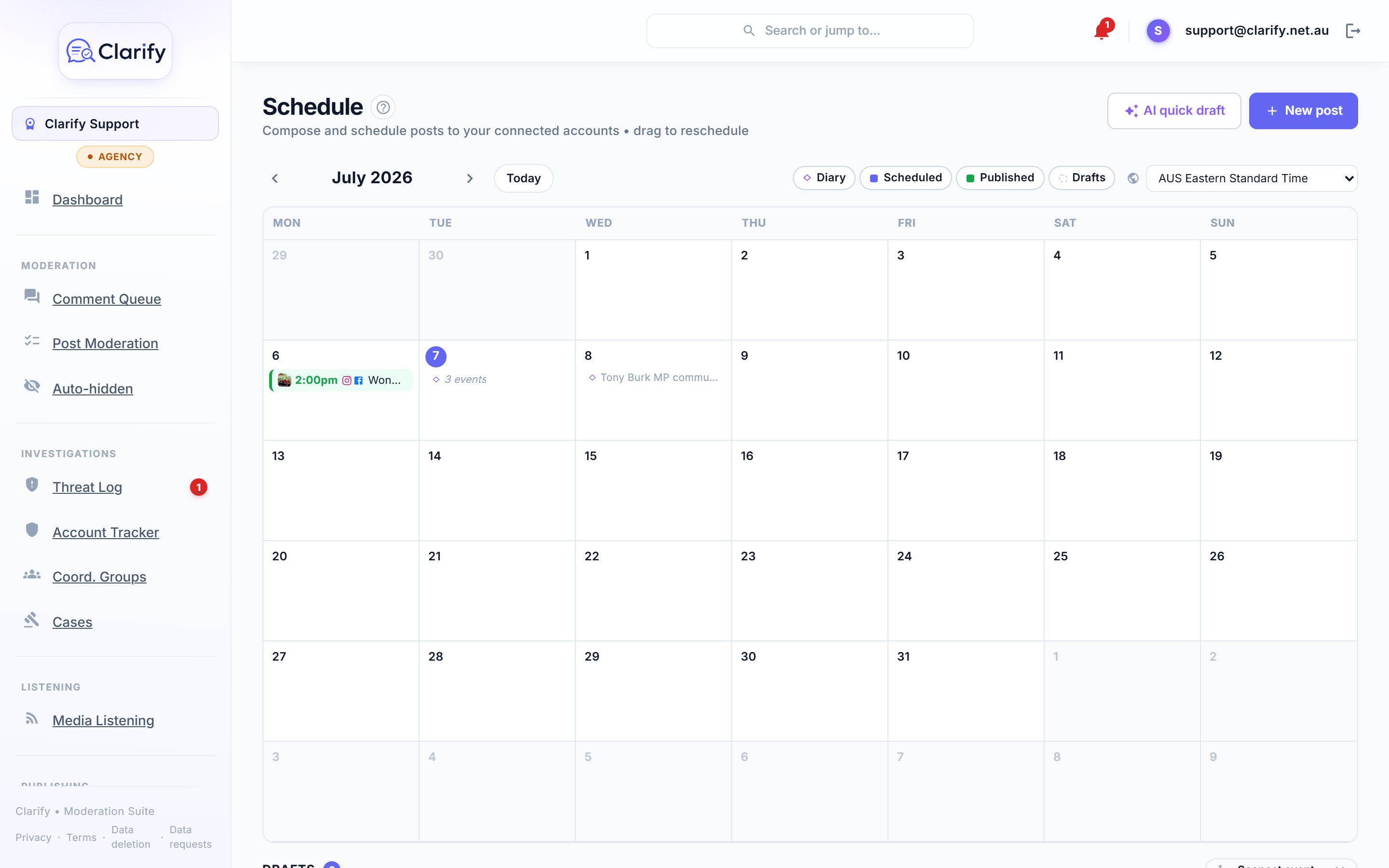
On the Schedule page, diary events show as thin lines at the top of each day, kept deliberately plain so they never look like a post. Your scheduled posts still sit below them as before.
Use the Show filter in the toolbar to choose what appears: Diary, Scheduled, Published and Drafts. If you hide any of them a small "filtered" tag appears, so you always know something is turned off. Your choice is remembered for next time.
If a day has more than a couple of events they collapse into a single line, for example "4 events". Click it, or any event, to open the event details.
Event details
Clicking an event opens a small panel showing its time, place and description, plus:
- Team notes you or a colleague have added.
- Any photos or video staged against the event.
- The posts already linked to it.
Events are read only in Clarify, they are managed in Outlook. The two things you can add are notes and media.
Adding notes
At the event, jot down the useful details a caption can't get from a calendar entry, for example "great turnout, about 40 locals, extended hours start Monday". Type your note and press enter. Notes are saved with your name and time, several people can add them, and they feed into any AI draft you create from the event.
Adding photos and video
If you have connected a media library (see Event media and your library), press Add media at the event to upload photos or video from your phone or computer. They are filed into a folder for that event automatically.
You do not have to upload through Clarify. Clarify creates an empty folder for each upcoming event as soon as it appears in your diary, so your team can also drop files straight into that folder from the OneDrive app, handy after a shoot on a proper camera. Either way the files show up against the event.
Drafting a post from an event
Press Draft post at an event and Clarify writes a draft for you from the event details, your notes and its photos, in your account's voice. It lands in Ready for review below the calendar for you to check and schedule. This is a Pro feature, see AI post drafts for the full picture.
Prefer to write it yourself? Choose compose manually to open a blank composer already linked to the event.
Who can use it
Connecting a calendar or media library needs the Manage pages permission. Seeing the diary and drafting posts is open to every member, including field staff with only the Upload event media permission, who can add photos and notes from out at events and generate an AI draft. Only scheduling or publishing the result needs Publish posts; anyone else's drafts go out through the Reviews queue.
Turning it off or pausing
On the Diary calendar card you can pause syncing (handy during a recess) without disconnecting, or disconnect entirely. Disconnecting removes the diary from your schedule but never touches posts you have already drafted or scheduled.
Still stuck? Contact support · Suggest a feature