
What are organisations
An organisation in Clarify is a party, network, or authority (for example a party head office, a peak body, or a regulator) that needs to see threats and bad actors across many workspaces at once, not one Page at a time. With each workspace's permission, an organisation gets a read-only view that collates the flagged accounts, coordinated groups, and cases those workspaces already hold.
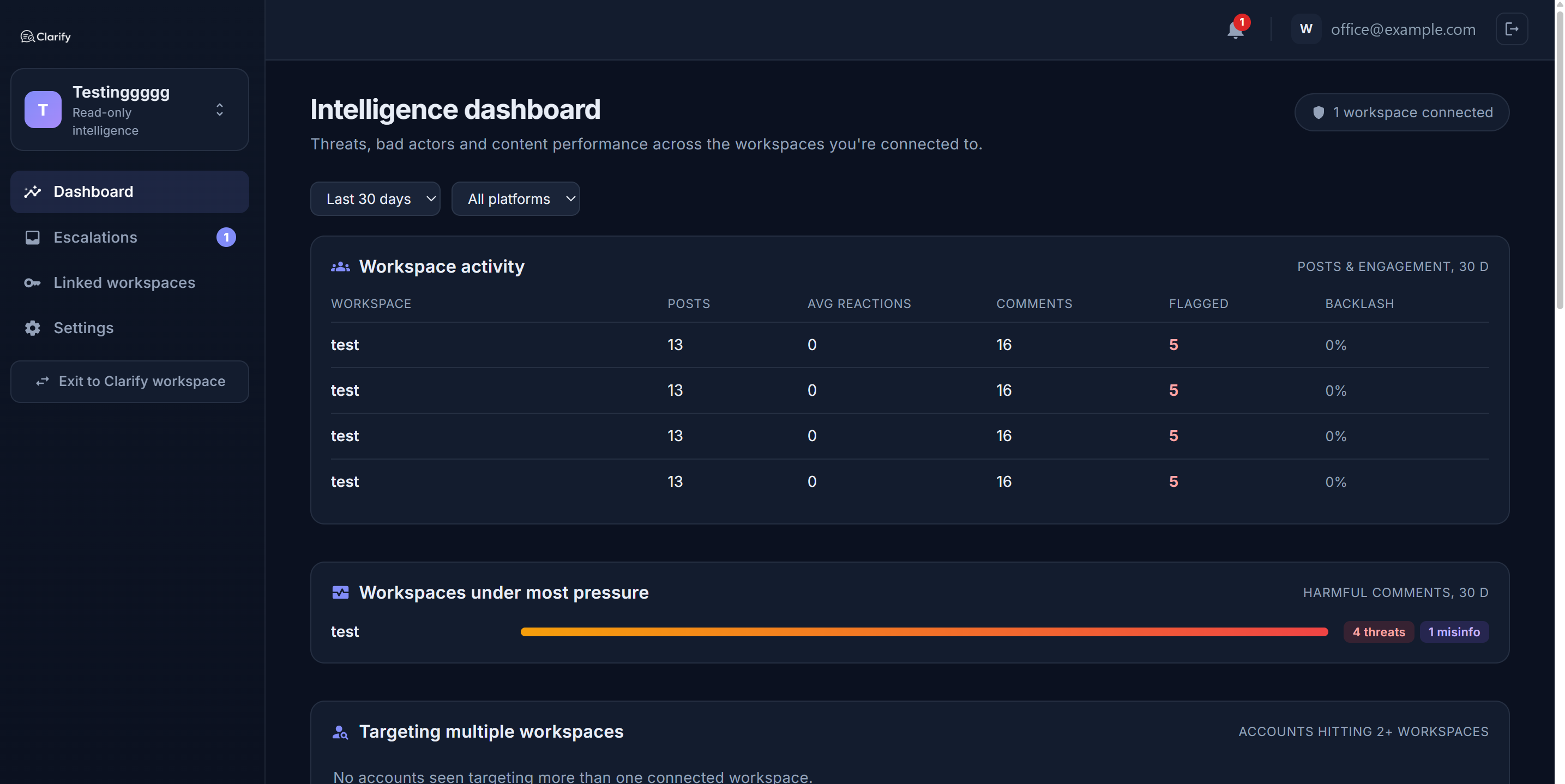
Organisation accounts are free. There is no plan to choose, no trial, and no billing on the organisation side. You only pay for Clarify moderation workspaces; running or joining an organisation costs nothing.
Two worlds, one login
Clarify has two sides, and a single account can use either:
- A Clarify workspace is where you moderate a Page: the Social Stream, threats, cases, and publishing. This is the paid side.
- The organisation portal is the read-only oversight view across the workspaces that have connected to your organisation. This is the free side.
You can belong to one or both. If you have both, a Org portal button appears in your workspace sidebar, and an Exit to Clarify workspace link appears in the organisation portal, so you can move between them.
The rules that keep it safe
Organisations are built as a careful, audited exception to Clarify's usual rule that nothing is ever shared between workspaces. So they are governed by a few promises:
- You opt in. An organisation sees nothing of your workspace until you, the workspace owner, accept a connection link they send you. See Connecting your workspace to an organisation.
- Read-only. An organisation can never hide, reply, mute, or change anything in your workspace. It can only look.
- Revocable at any time. You can cut an organisation's access from Settings > Organisations with one click, and their view of your workspace ends immediately.
- Only public comment data. Everything an organisation sees is data your workspace already holds about public comments. It is a collation feature, not a new form of data collection.
Getting an organisation
- Create one (free). At sign-up choose Create an organisation, or from an existing account go to Settings > Organisations and choose Create an organisation.
- Join one. Organisation membership is invite-only. An admin sends you an invite link; opening it and signing in adds you as a member.
Next: Connecting your workspace to an organisation and The organisation portal.
Still stuck? Contact support · Suggest a feature