
The Social Stream
The Social Stream is where most moderation happens. Every comment across your connected socials lands here, already sorted into a category by the AI. By default it shows everything, including comments you've already dealt with, so it reads as a live stream of the conversation around your pages.
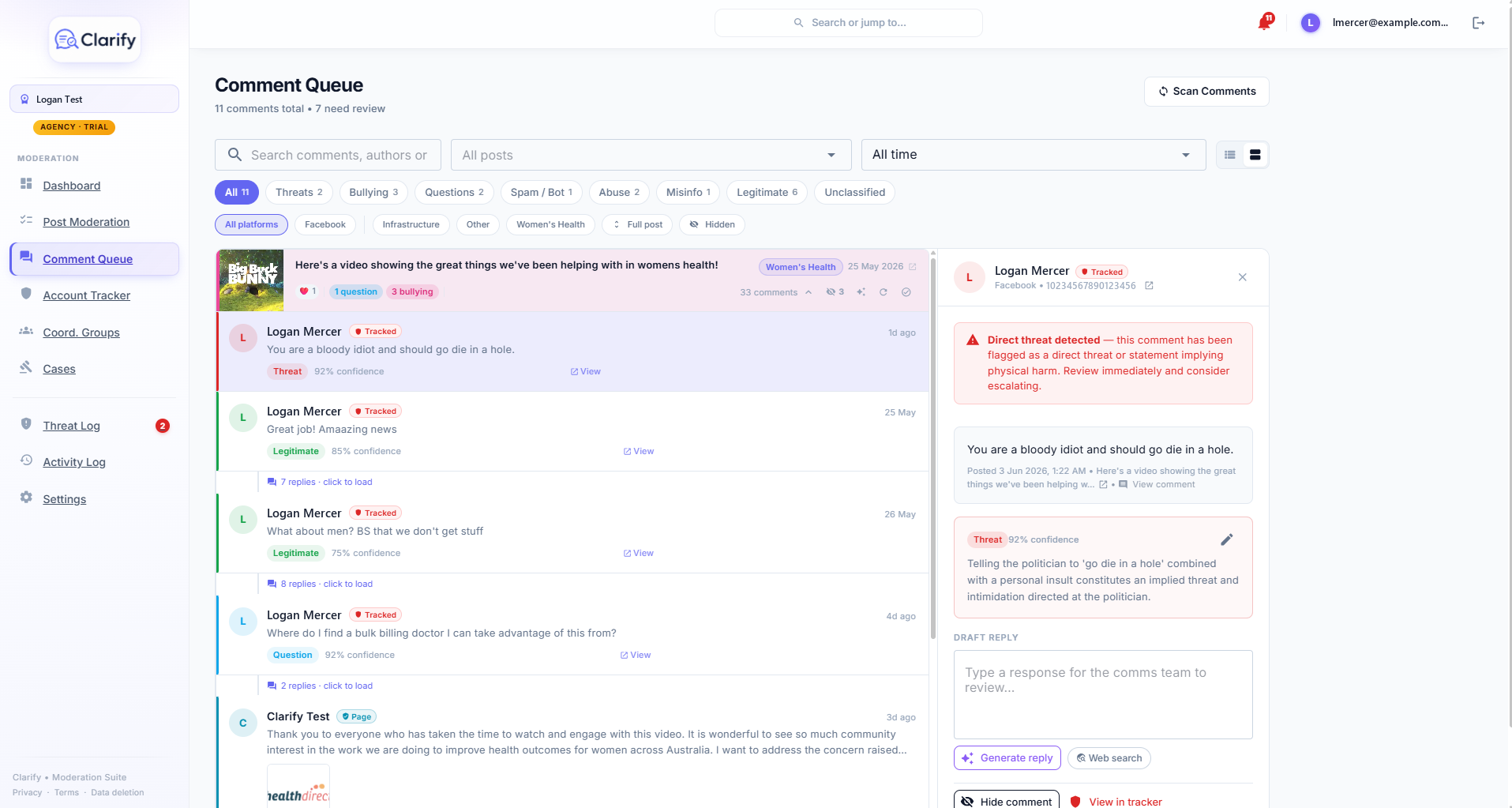
The categories
- Threats. Statements of or implying physical harm. These get top priority everywhere in Clarify.
- Bullying. Targeted harassment or pile-ons.
- Abuse. Slurs and abusive language.
- Spam / Bot. Junk, scams, and suspected bot activity.
- Misinfo. False or misleading claims.
- Questions. Genuine questions from constituents that deserve an answer.
- Legitimate. Normal, healthy comments. No action needed.
- Unclassified. Not yet processed, usually because a scan is still running.
Every classification shows a confidence percentage and the AI's reasoning. If the AI got one wrong, open the comment and use the edit menu next to the category badge to reclassify it. Your correction is marked as a manual override.
Finding things
- Search by comment text, author, or post.
- Category chips filter to one category. Each chip shows its count.
- Date presets: last 3, 7, or 30 days, or all time.
- Post filter: narrow to one or more specific posts.
- Hidden is on by default, so comments you've hidden stay visible with a grey Hidden chip. Click it off to filter them out.
- Moderated is on by default, so already-handled comments stay visible. Click it off to focus on just what still needs attention, handy on a busy day.
Two ways to view
The toggle in the filter bar switches between a flat list view (newest first across all posts) and group by post, which organises comments under their post. The grouped view is where bulk actions live.
The detail panel
Click any comment to open its detail panel. From there you can see the full text and any image, the reaction counts, the classification with its reasoning, and take action: draft a reply, hide the comment, raise it as a threat, or flag the author's account for tracking in the Account Tracker. If the comment is itself a reply, an In reply to block shows what it was responding to, so you're never judging it out of context. And from the draft-reply section you can send the draft to a teammate with Request review (it reads Send for approval if you can't post replies yourself). Each action is covered in its own article.
Still stuck? Contact support · Suggest a feature