
The organisation portal
The organisation portal is the read-only oversight view for a party or authority: everything the workspaces connected to you have flagged, seen together. It is completely free, with no plan or billing on the organisation side.
Getting in
- If you created or were invited to an organisation, signing in takes you straight to the portal at clarify.net.au/org.
- If you also run a Clarify workspace, use the Org portal button in your workspace sidebar to switch across, and Exit to Clarify workspace to switch back.
The dashboard
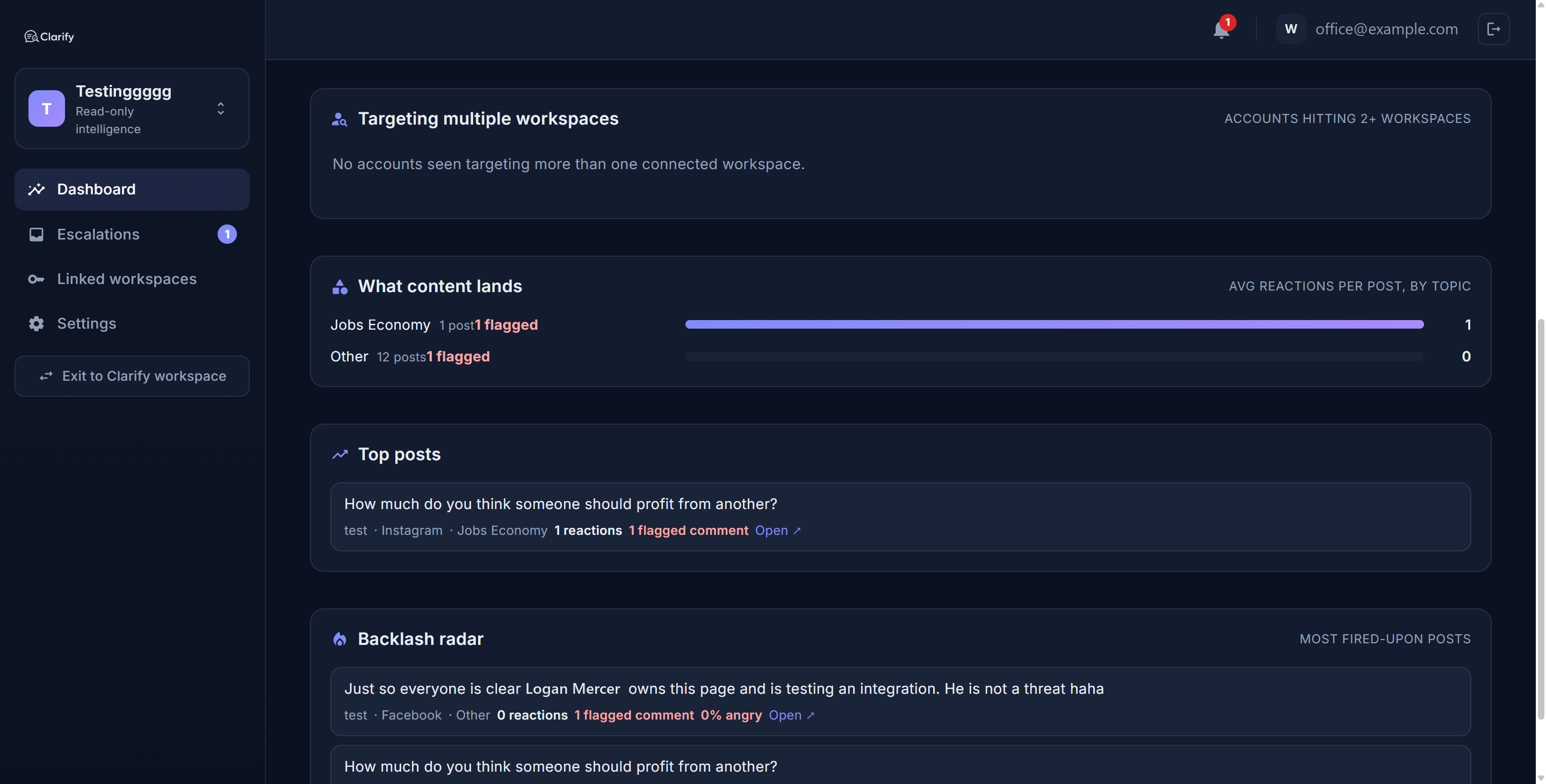
The dashboard collates intelligence across the workspaces connected to you. A filter bar at the top sets the time window (7, 30, or 90 days), platform, and a single workspace or all of them. You will see:
- Workspace activity. Posts, average engagement, comment volume, and how many comments were flagged, per workspace.
- Workspaces under most pressure. Ranked by harmful comment volume, so you can tell who needs more support.
- Targeting multiple workspaces. Accounts that are hitting more than one of your members, the single most useful cross-workspace signal.
- What content lands. Average engagement by topic, and the harmful comments each topic attracted.
- Top posts and a Backlash radar for content that drew the most fire.
Escalations
The Escalations tab is your queue of cases and flags that workspaces have raised to you, shown as a board. Click any card to open it, read the details, change its status as you work it (New, Reviewing, Actioned, Dismissed), and talk to the workspace in a shared discussion thread. For a referred case you can open a read-only, live view of the full case and download the report PDF. A badge on the tab shows how many are new.
Linked workspaces
Admins use the Linked workspaces tab to bring workspaces on board. Enter the workspace owner's email, generate a single-use connection link, and send it to them through your own secure channel. The owner accepts it to grant you read-only access. You can see pending links, currently linked workspaces, and unlink any of them.
Team members
Under Settings > Team members, admins invite analysts and other admins by email (invite-only, just like a Clarify workspace). The owner can change a member's role between Admin and Analyst, transfer ownership, and remove members.
Settings and notifications
Settings holds:
- Organisation profile. Your name and description, shown to people you invite and to workspace owners deciding whether to grant you access. Keep it clear so people know who they are joining.
- Notifications. Choose in-app and email alerts for new escalations, replies, and new workspaces connecting, and opt in to a weekly digest email that summarises the week across your connected workspaces. There is a Send me a test digest button so you can preview it.
Creating a Clarify workspace
If your organisation account also needs to moderate its own Page, choose Create a Clarify workspace in the portal sidebar. That sets up a paid moderation workspace on the same account and walks you through setup. Your organisation is untouched.
Still stuck? Contact support · Suggest a feature